
The Ultimate Entra ID Access Package Report & Authorization Matrix
If you’ve spent any time working with Access Packages in Entra ID Entitlement Management, you’ve probably come to the same conclusion I have: the built-in reporting options leave a lot to be desired.
Picture this: You need to remove a specific security group, but that group is buried as an approver or reviewer in about 40 different access packages. How do you find them? Or maybe you need to hunt down every package that contains a specific PIM group, or see which ones trigger a Logic App upon assignment.
Right now, your only option is to click through every single access package, check the settings, rinse, and repeat. If you have 10 packages? Fine. If you have 50, 100, or 1,000? It’s an absolute nightmare.
I got tired of the manual clicking, so I wrote a PowerShell script to save my sanity. It captures almost everything. Basically, if it’s in your access package, this script probably exports it.
Script
If you don’t want to read through the prerequisites, feel free to download the script directly.
Result
When you run this script, it will create an Excel file that looks like this. It has a lot of worksheets so I will only show some of them.
Example: Role_dependencies
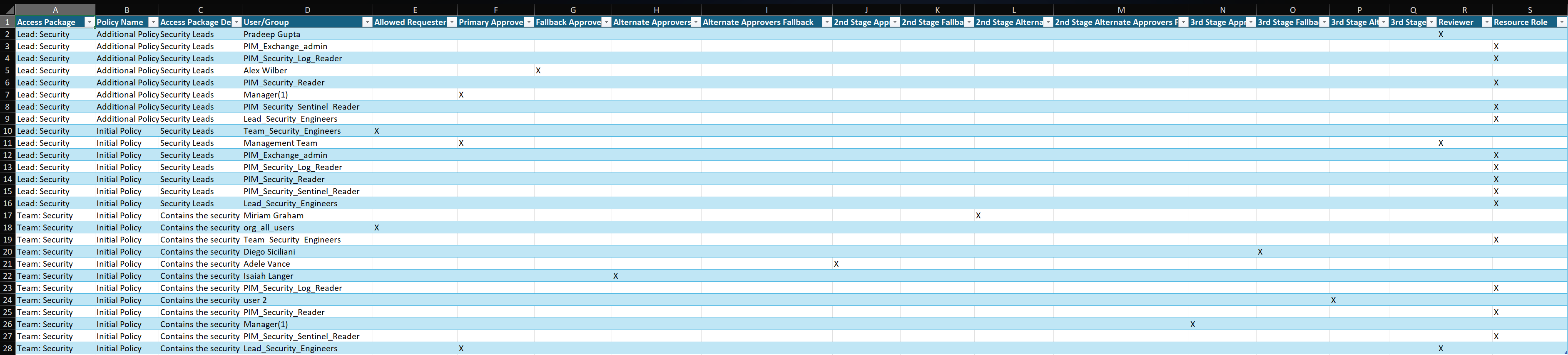
Example: AP_Definitions


Prerequisites
To run this script, we will need to download several PowerShell modules and we also need to create an App Registration which will be used to connect to Graph.
Powershell Modules
Install-Module Microsoft.Graph.Authentication -Scope CurrentUser
Install-Module Microsoft.Graph.Users -Scope CurrentUser
Install-Module Microsoft.Graph.Groups -Scope CurrentUser
Install-Module Microsoft.Graph.Beta.Identity.Governance -Scope CurrentUser
Install-Module ImportExcel -Scope CurrentUser
App Registration
Permissions
You will need to create a new app registration with the following Application permissions:
- EntitlementManagement.Read.All
- Group.Read.All
Important: Don’t forget to grant admin consent and a certificate!
How to run the script
You need to use the following parameters:
- TenantId
- ClientId
- Thumbprint
- OutputPath
Example:
.\FullAccessPackageReport.ps1 -TenantId '85e3758f-7172-4f22-8534-e7b417' -ClientId 'e832344e-5889-46bd-89d3-fad22fcd78d' -Thumbprint 'DEB54AB04B517542E093FAA045D2B9B3EA830' -OutputPath 'C:\Scripts\AccessPackagesReporting\Demo'